PPT FOR SHORT

Archive for February, 2012|Monthly archive page

Learning to Use PowerPoint

In Great books, PowerPoint, Stuff About Me on February 14, 2012 at 6:49 am

Long ago and far away I taught myself how to use PowerPoint. I had a lot of help, from the Teach Yourself Visually book series. I won’t tell you which version of PowerPoint I learned on, because I honestly don’t remember. I think it was back when it had that annoying paperclip helper that everyone wanted to just go away. Good news is that the paperclip seems to be long gone from PowerPoint, and more importantly an up to date version of this great book is still kicking around.

Unlike a class, by using a book like this, you can learn at whatever pace you feel most comfortable. I actually taught a class for a wordprocessing program one summer and I can tell you, going too slow is just as annoying as going too fast.

And unlike fumbling around, hoping you’ll figure PowerPoint out through trial and error, you can get a TON of time saving tricks using a book like this. I can’t tell you how many times I’ve shown someone how to do something more efficiently/effectively in PowerPoint and they practically kissed me!

So, if you’re looking for a good way to get started with PowerPoint, do yourself a favour and pick this book up. Of course, if you’d like a little help turning your PowerPoint into a thing of beauty, well you know who to call.

The Very Best Slide Transition

In PowerPoint, Presenting, Uncategorized on February 9, 2012 at 11:01 am

You can always tell a novice presentation builder by their choice slide transition.  The total newbie doesn’t even know that there are transition options, so their slides always just “cut” (basically there’s no transition) from one to the other.   The naive newbie selects “random” transition (PowerPoint cycles through all the transition options with every new slide) which is just plain distracting.  But the seasoned presenter knows that the very best slide transition is the tried and true “fade.”

And yes, you can and should use it on every single slide in your presentation, unless there’s a really, really good reason to change it up.  Just because you have all those transitions to choose from doesn’t mean that you have to use them.  A fade transition has a nice, simple, feel.  Stick with it and it won’t let you down.

Now, I will admit that I have used other transitions, but I use them sparingly and for very specific effect.  For instance, the push transition works really well if you want to make it appear as if you haven’t moved to a new slide, but instead that text or a graphic on one slide is being pushed off the page to make room for a new text or graphic (just make sure the background is one flat colour).  Duarte Design created a great presentation that’s actually one of the built-in themes in PowerPoint 2010, which demonstrates another very cool use of the push transition (along with some very neat animation).

But for 90% of your presentations, just fade baby… fade away.

Sit or Stand During a Presentation?

In Presenting on February 8, 2012 at 10:42 am

Maybe I’m old school, but if you’re presenting something to an audience, then I think you should stand.  It looks more professional, it’s easier to hold the audience’s attention, you speak better, and it makes you PART of the presentation.  If you’re uncomfortable presenting, and think sitting would take the focus off you, then think again.    The only way to overcome that discomfort is to get up and start really presenting.  Sure it might take some time, and you definitely need to practice, practice, practice, but I promise you that you will get better.  One thing’s for sure, trying to keep a low profile by sitting is not helping you get better.

Now, let me just clarify what I mean by a presentation, because I think this is the thing that really answers the question of sit or stand.  If you are indeed PRESENTING something to an audience, for at least 3/4 of the time, then stand.  However, if what you are actually doing is holding a WORKING SESSION where you are presenting a portion of the content AND the audience is expected to talk more than 1/2 the allotted time, then sitting is the way to go.  There’s really practical reason for this.  Working sessions require you to take notes and capture the input of your audience – that’s tough to do while you’re standing (unless you’re using a flip chart or white board, then you’re back to standing anyway!).

So, now that we’ve got that out of the way, the next question is WHERE to stand during a presentation?

Why Practical Presentation Tips?

In Great books, Stuff About Me on February 5, 2012 at 6:42 pm

Well, I’ve just finished Hugh MacLeod’s second book “Evil Plans” and it has inspired me to get started on an evil plan of my own.  I’ve spent the last 20+ years in advertising, which has been a fun ride.  It’s not quite as much fun as it looks on TV, but there are definitely some great things about it.  For me, one of the great things that I got to do (A LOT) was build and give presentations.  I’m not sure why I get such a charge out of it, I just do.  I can remember many times thinking (and even saying) that if I could earn a living doing nothing but presentations, I would.  Sounds a bit like an evil plan, doesn’t it?

At the present moment, I am (as they say) between gigs.  Shockingly, I have only ever worked at two advertising agencies.  The first one recruited me right out of university (can you believe there was a time when that happened?), and I stayed for seven years.  I only left because I was having trouble with the work-life balance thing after my first child was born.  I left to go to my second agency, a small boutique where the three partners all had young children at home and wouldn’t dare schedule meetings before 9am or after 5pm.  I stayed there for fourteen years, during which time I had my second child and helped the agency grow from less than 20 people to over 100.  I’m not entirely sure how many presentations I built during that time, but it was A LOT.  People even knick-named me “The PowerPoint Queen” (I used that as the theme of my Halloween costume one year).

So I guess you could say, I know a few tricks and tips when it comes to presentations.  I decided to start this blog as a bit of an experiment.  A way to give what I know to the world and see if maybe, just maybe, it comes back to me in the form of a full-time gig I love.  A chance to earn a living doing nothing but presentations.  We shall see…

Customize Quick Access Toolbar

In PowerPoint, Short Cuts, Time Savers on February 5, 2012 at 2:57 pm

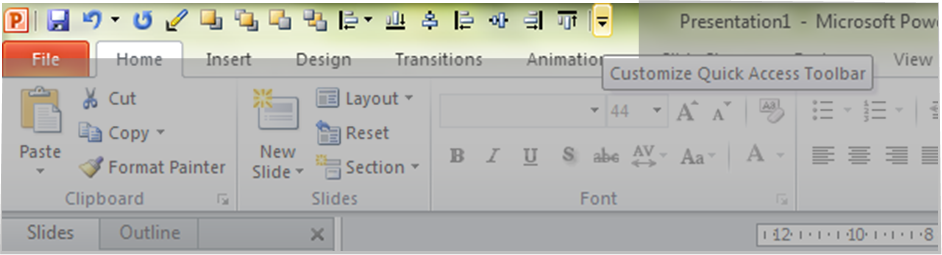
This is one of my favourite things about the newer versions of PowerPoint (2007, 2010). You can put all the things you use often up here to have access to them whenever you want. It’s a huge timesaver.

See that little down arrow up there in the top left-hand corner next to the little P (PowerPoint) symbol?  Click on it, then go to the second last item on the drop-down menu called “More commands…” and it will open up a huge menu of items you can put up in that custom quick access toolbar.  Don’t go crazy, because the number of items you can have up there isn’t limitless.  Plus, the whole idea is to save that special spot for the things you use A LOT but are a bit of a pain to get to quickly.

I use it for the alignment tools (go to back/front, and align left/right/centre, etc.).  I use these a lot because my preferred presentation style frequently uses images and builds.  In older versions of PowerPoint, they were easier to get to, but in the newer versions they’re kinda buried.

Saving time is a good thing (as Martha would say).  Do yourself a favour and try it out.

Design a site like this with WordPress.com
Get started